Is simple! Just follow a few steps.
From cPanel it is possible to add an FTP account in just a few simple steps which you can access from your own FTP client.
COS’E’ AN FTP CLIENT?
It is nothing more than a program that allows you to read, download and modify files and folders from your own web hosting from your own computer.
We recommend everyone to use FileZilla, a client that in the free version has everything you need to manage your FTP access. It is possible to download it from the site in versions for Mac, Windows and Linux: https://filezilla-project.org
Let's now see how to create a new FTP account from your cPanel.
First we click on the "FTP Accounts" button found in the "Files" section
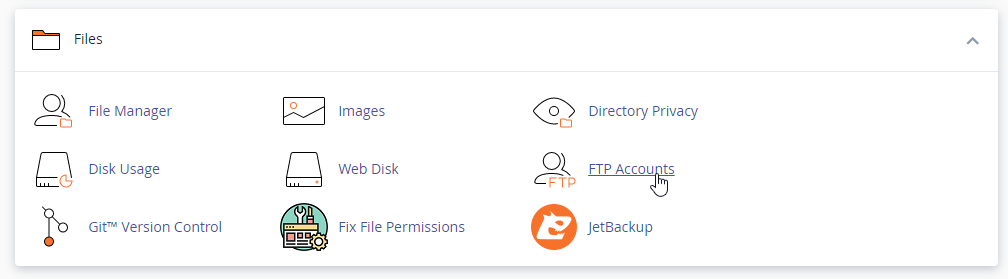
1. the username (at your discretion)

2. a password

3. Indicate the folder we want to access with this FTP account.
Attention! This data is essential and is almost always wrong.
The system will automatically insert the value corresponding to the domain name/username. If you do not change it, a directory will be created, if it does not exist, in which there are no files and it will not be possible to access other folders.
We remind you that the use of space for saving personal files that are not functional to the services purchased (website or email) is not permitted, therefore creating an empty directory is useless except in particular cases.
We will therefore have to delete the data entered automatically and as necessary:
- leave the space empty to be able to access all the files and folders of your web hosting
- specify the directory of your website (for example public_html)
- specify the directory to which we must access with our ftp account

Finally, just click on “Create FTP Account” to obtain a new account.
Finally, let's see how to add the newly created account to FileZilla
The procedure is actually extremely simple. Just enter
- Host which corresponds to the simple domain, for example easygreenhosting.co.uk
- Username, for example michele@easygreenhosting.co.uk
- Password
And click “quickconnect”.


And voilà! We will be connected via FTP to files and folders of our web hosting.
For other needs, I invite you to read the tutorials already published.